🌩️
 CloudCrafter – Terraform GUI Without the Headaches
CloudCrafter – Terraform GUI Without the Headaches
Click. Deploy. Relax.
CloudCrafter takes the complexity of Terraform’s command line and turns it into a beautiful, modern desktop experience.
Why waste time memorizing terraform apply flags when you can spin up infrastructure with a single click? Whether you’re managing AWS, Azure, or GCP, CloudCrafter gives you the power of Infrastructure as Code—without the command-line gymnastics.
🚀 How CloudCrafter Works
-
Step 1 – Logging into Your Cloud
When you launch CloudCrafter, you start with a modern Cloud Login dialog.
- AWS Tab: Enter your Access Key, Secret Key (hidden for security), and Region.
- Azure Tab: Enter your Subscription ID, Tenant ID, Client ID, and Client Secret (hidden).
- GCP Tab: Upload your Service Account JSON file and enter your Project ID.
-
Step 2 – Preparing Terraform
Once credentials are in place, CloudCrafter ensures your environment is ready:
- Checks if Terraform is installed. If not, it downloads the latest release and configures your PATH automatically.
- Validates AWS CLI, Azure CLI, and Google Cloud SDK, updating them if outdated.
- Runs small checks (like
az loginfor Azure) to confirm your credentials are active and correct.
-
Step 3 – Running Terraform with One Click
CloudCrafter replaces CLI typing with sidebar buttons. Each button maps directly to a Terraform command:
- Init →
terraform init - Plan →
terraform plan - Apply →
terraform apply - Destroy →
terraform destroy - Validate →
terraform validate - Output →
terraform output - State List →
terraform state list - Workspace Switch →
terraform workspace select <name>
- Init →
-
Step 4 – Managing Resources
Need to clean up? CloudCrafter gives you a Resource Delete Dialog.
- Lists all Terraform-managed resources (VMs, services, clusters).
- Select the ones to remove with checkboxes.
- CloudCrafter safely runs the matching
terraform destroycommands in the background.
-
Step 5 – Tracking Progress
Every heavy task runs in a background worker thread.
- Progress bars move in real-time.
- Notifications pop up when tasks succeed or fail.
- The log panel records everything for full transparency.
📊 Architecture Flow Diagram
 ┌───────────────────────────────┐
 │        User Opens App         │
 └───────────────┬───────────────┘
                 │
                 ▼
 ┌───────────────────────────────┐
 │  Fill Cloud Login Form (AWS,  │
 │  Azure, or GCP credentials)   │
 └───────────────┬───────────────┘
                 │ Validation
                 ▼
 ┌───────────────────────────────┐
 │   Check CLIs (Terraform, AWS, │
 │   Azure, GCP) – Auto Install  │
 └───────────────┬───────────────┘
                 │
                 ▼
 ┌───────────────────────────────┐
 │ User Clicks Command (Plan,    │
 │ Apply, Destroy, etc.)         │
 └───────────────┬───────────────┘
                 │ Runs subprocess
                 ▼
 ┌───────────────────────────────┐
 │   Terraform Executes Actions   │
 │   (provision infra, update,   │
 │   or delete resources)        │
 └───────────────┬───────────────┘
                 │ Logs stream back
                 ▼
 ┌───────────────────────────────┐
 │   CloudCrafter Log Panel + UI │
 │   Shows Progress & Results    │
 └───────────────────────────────┘
This is Terraform + Cloud CLIs, but wrapped in a user-friendly GUI.
✨ Key Features
- One-Click Terraform Actions – Init, Plan, Apply, Destroy, and more.
- Multi-Cloud Login – AWS, Azure, and GCP all in one place.
- Auto CLI Updates – Stay current without manual installs.
- Modern Dark-Mode UI – Sleek, gradient-rich design with rounded corners.
- Full Transparency – Logs, outputs, and errors always visible.
- Safe Cleanup – Resource delete dialog for targeted removals.
🧩 Who It’s For
- DevOps Engineers – Automate faster, avoid CLI fatigue.
- Cloud Architects – Manage multi-cloud environments with clarity.
- Learners – Understand Terraform without drowning in syntax.
- Teams – Standardize workflows with a consistent GUI.
📦 Download CloudCrafter
Latest Version: v1.2.3
Powered by: Terraform v1.13.1
Powered by: Terraform v1.13.1
📸 Screenshots
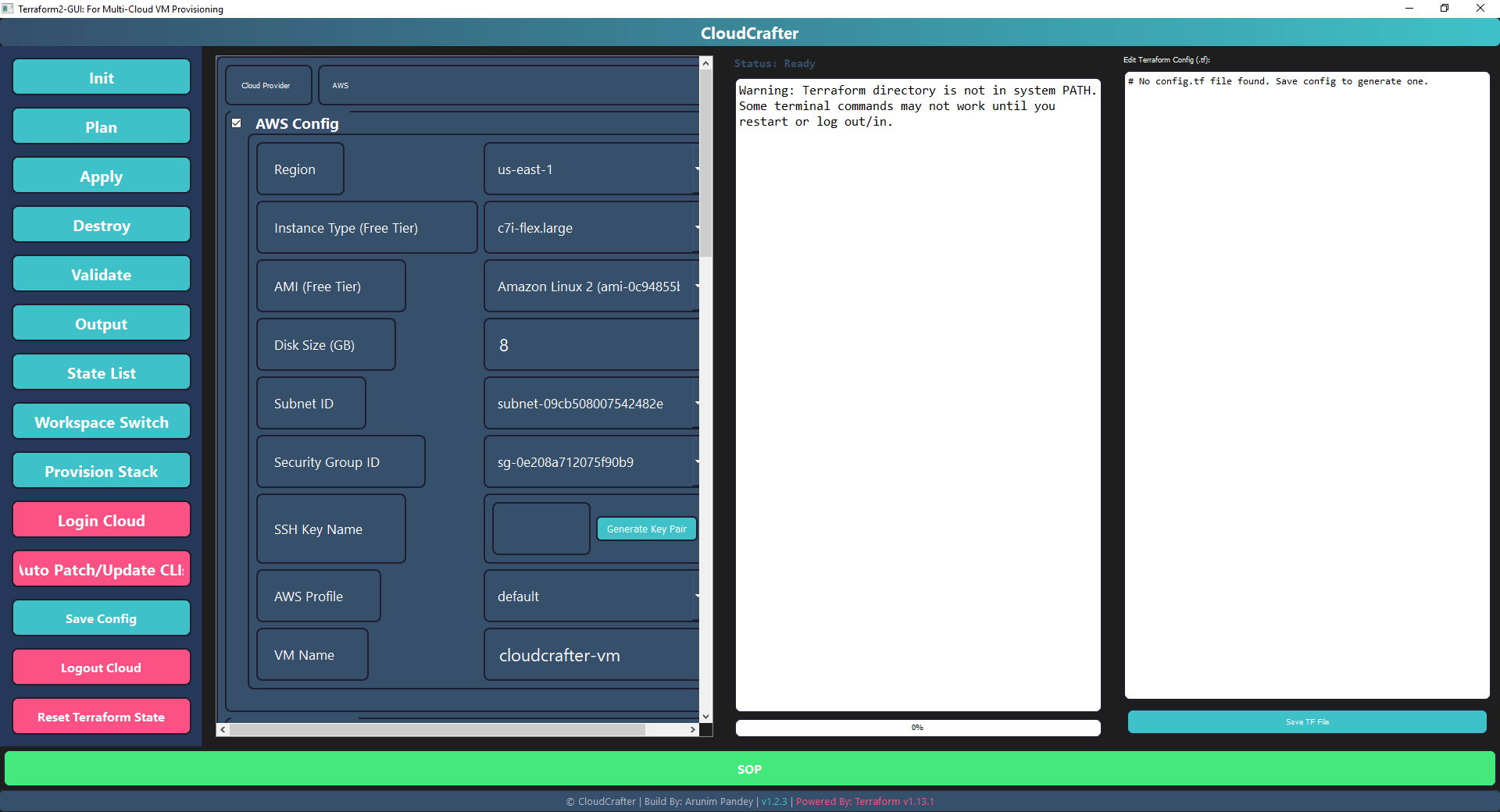
Main Window
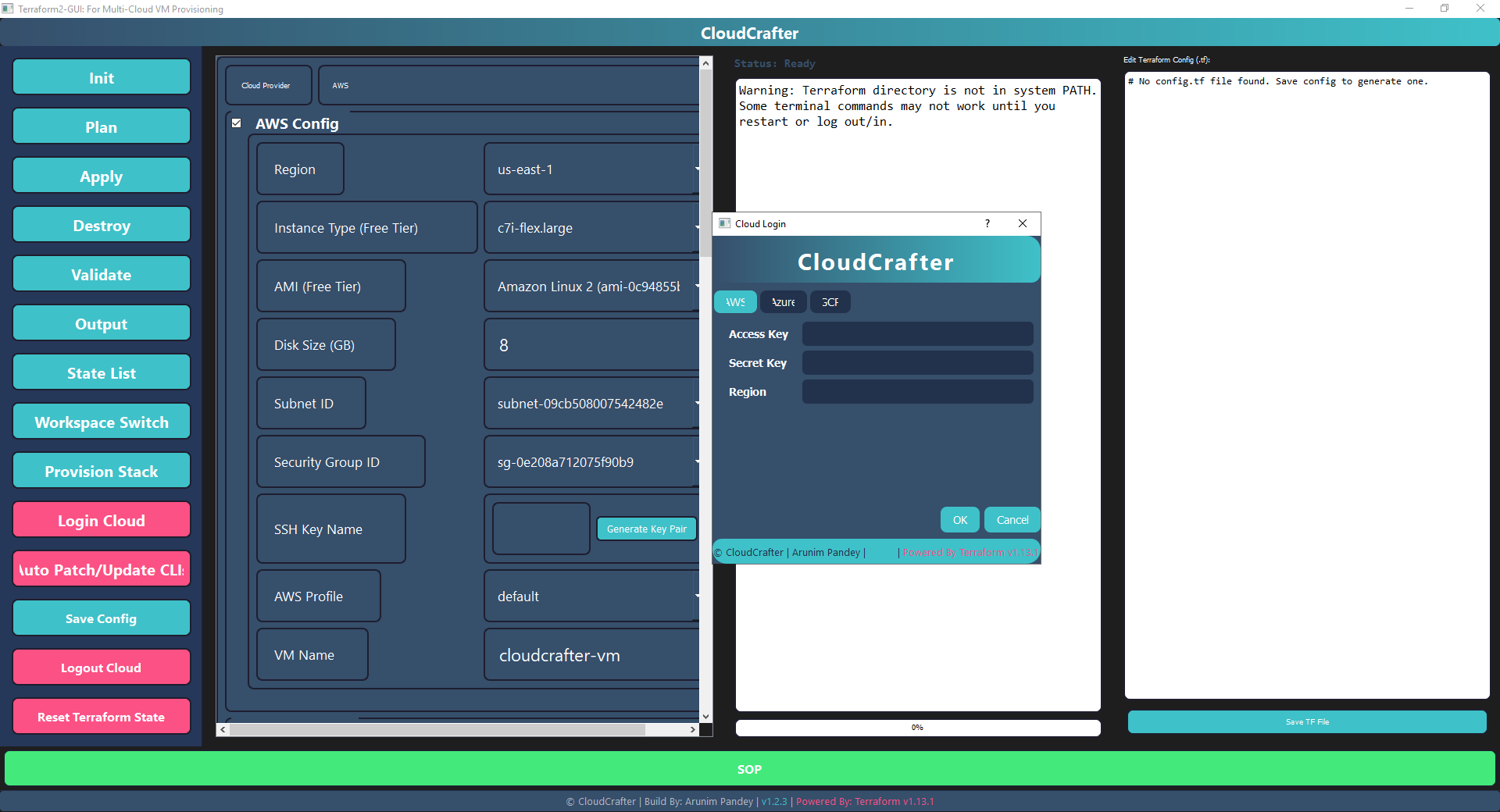
Cloud Login Dialog
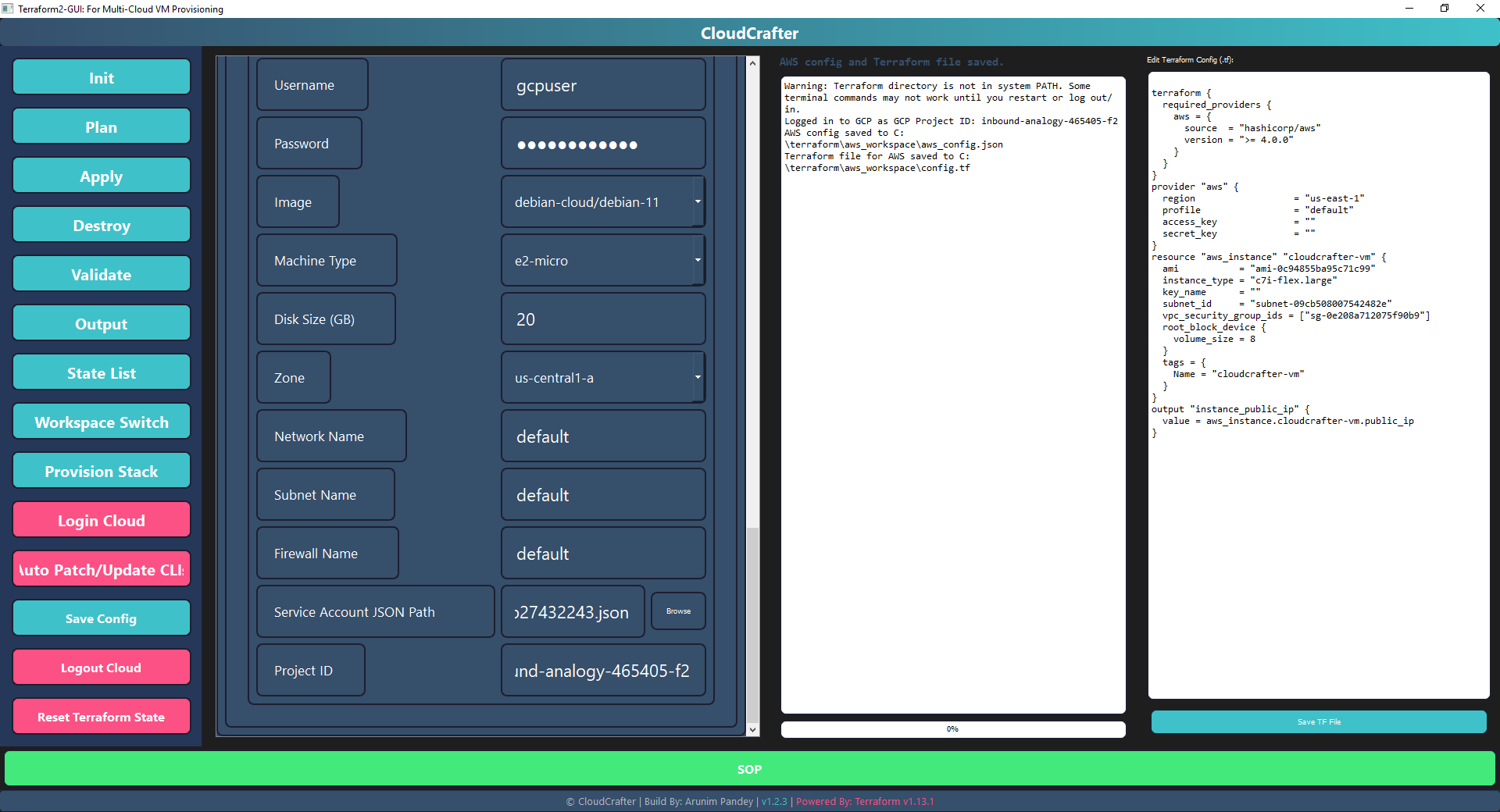
Terraform Actions Panel
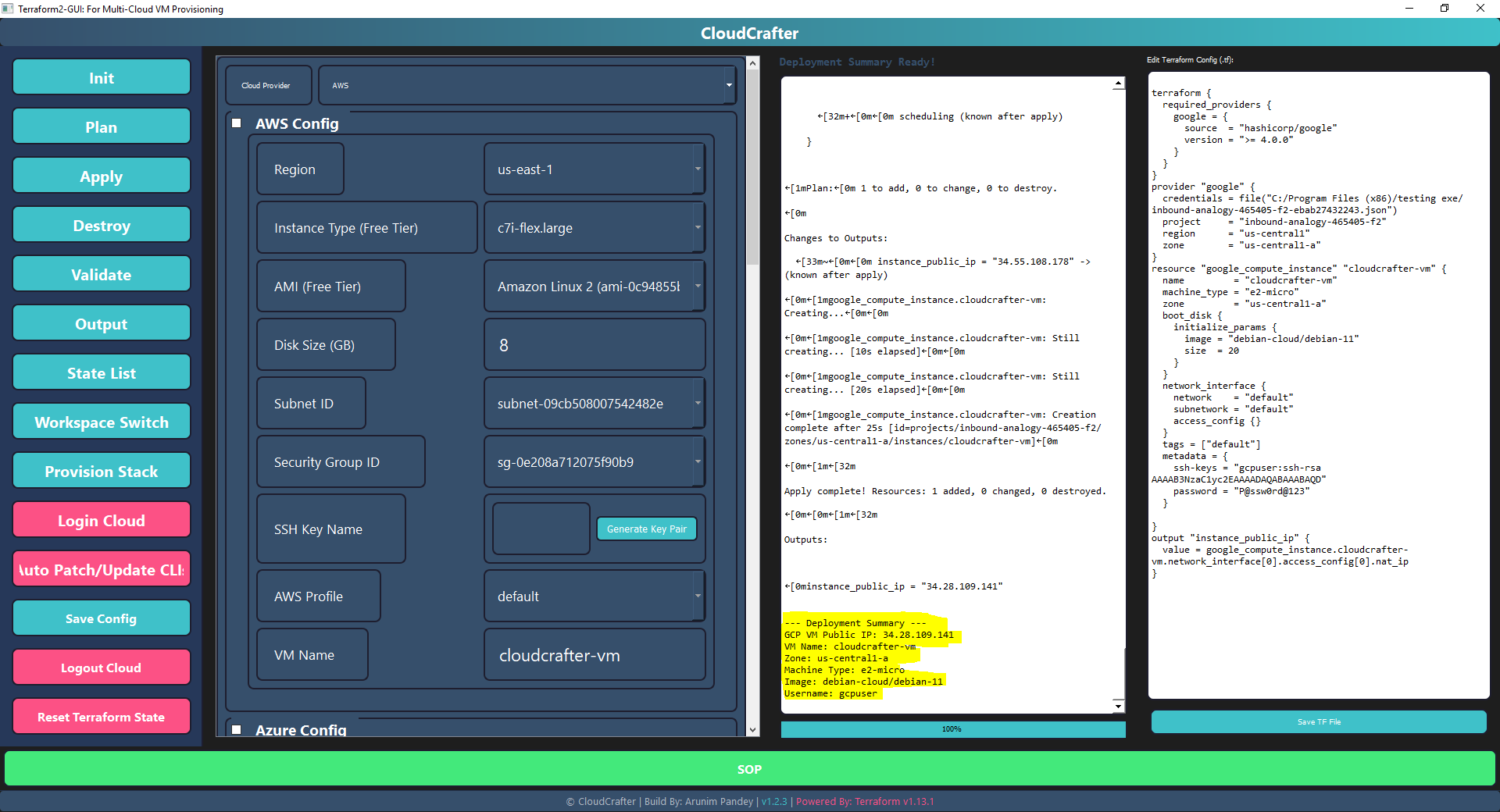
Resource Management Dialog
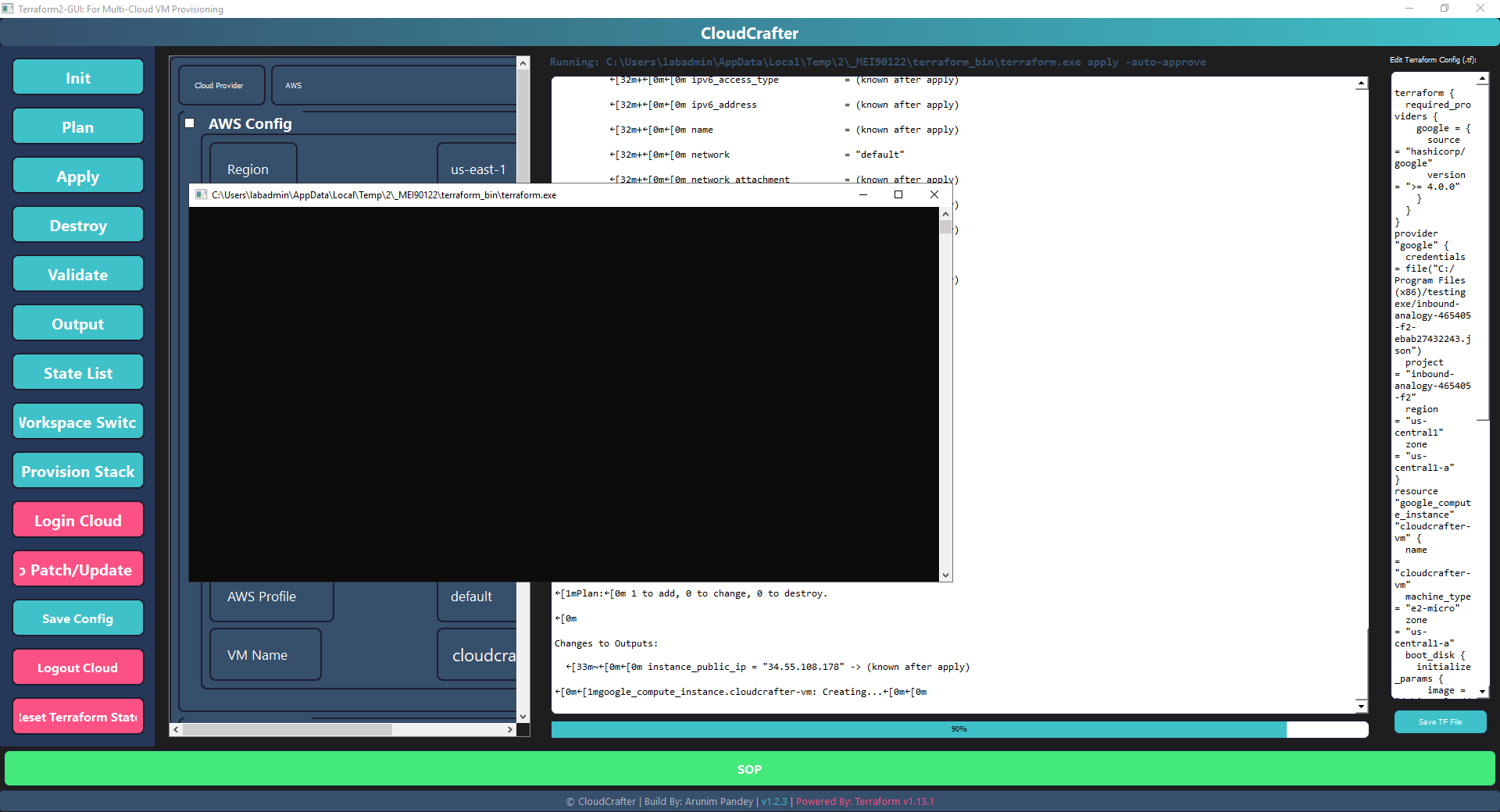
TF Action Output
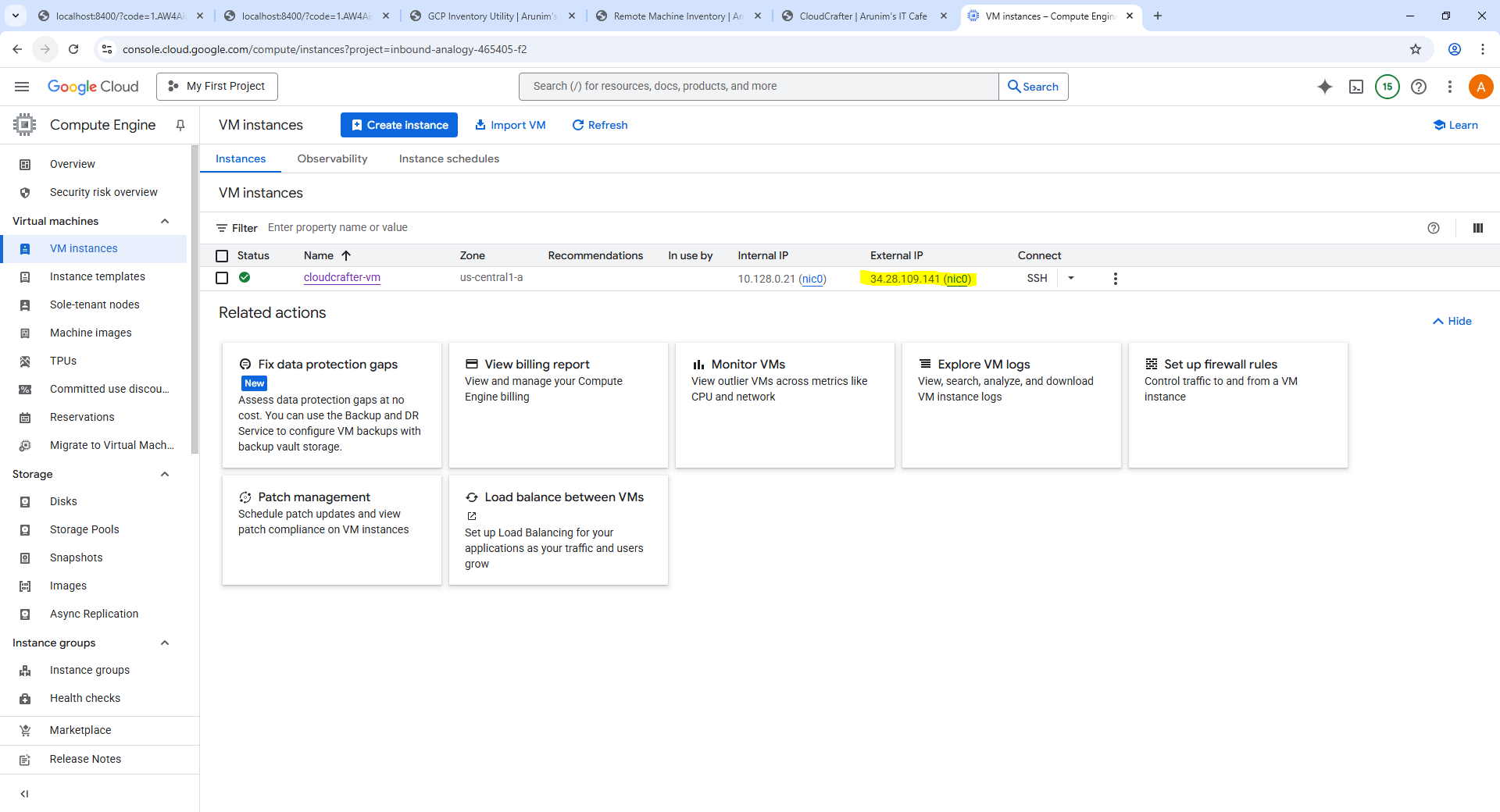
Generated VM on GCP
❓ Frequently Asked Questions
- Q: Is CloudCrafter free?
Yes, the base version is completely free. - Q: Do I still need to know Terraform?
Yes, but CloudCrafter makes it easier. Logs show every command so you learn by seeing. - Q: Does it support Mac or Linux?
Currently Windows-only. Cross-platform support is planned. - Q: Can I see what’s happening under the hood?
Absolutely. Every action is logged in real-time.
👨💻 About
CloudCrafter is proudly crafted by Arunim Pandey.
It blends professional-grade Terraform workflows with a modern, friendly interface.
Stop memorizing commands. Start crafting your cloud.